Getting started
Air Drive runs a real web server on your iPhone or iPad. Computers on the same Wi-Fi reach it in a browser — or mount it as a disk. Nothing is installed on the computer, no account is created, and no internet connection is used.
- Open Air Drive and tap Start.
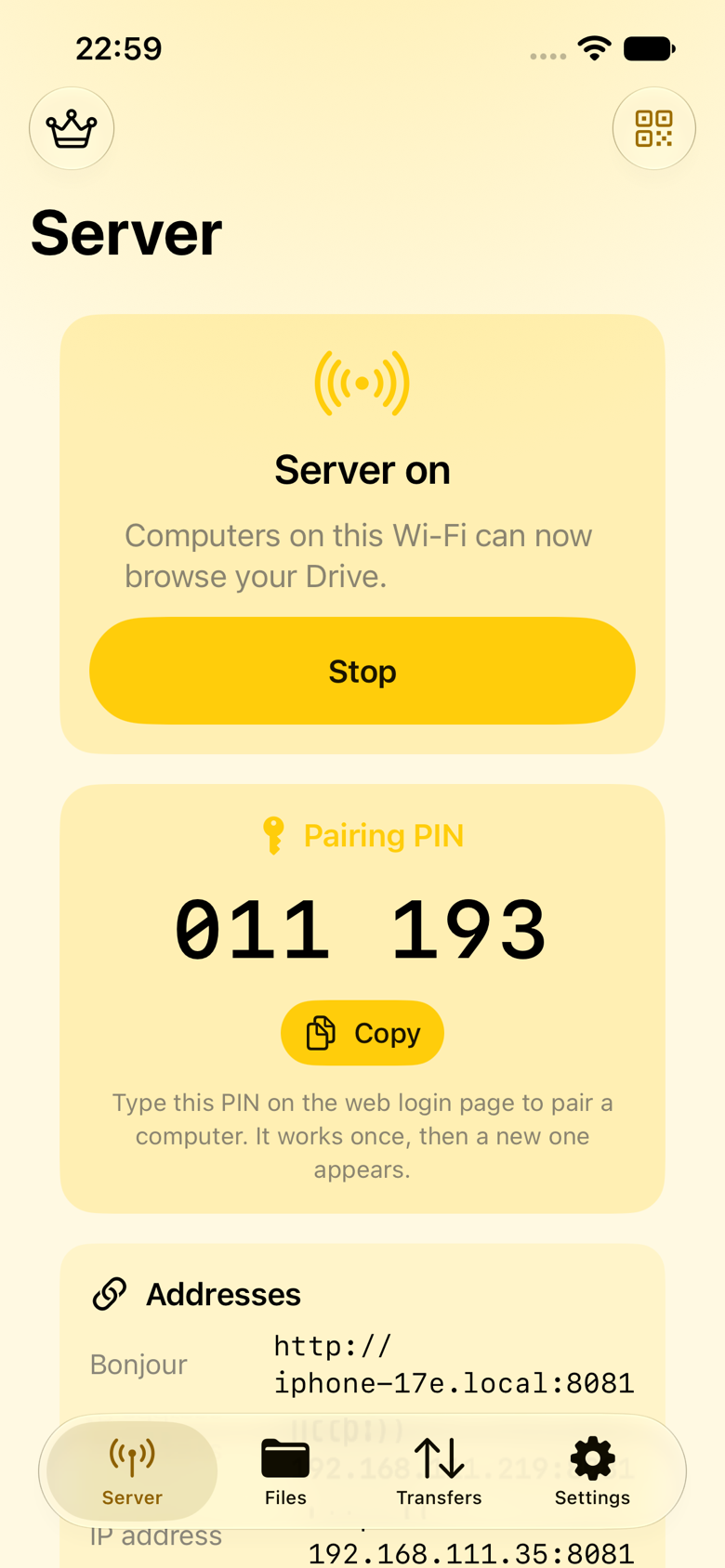
The Server screen shows the address (like
192.168.1.20:8080), a QR code, and a status card while the server runs. - Connect from your computer. Type the address into any browser, or scan the QR code with your phone's camera from the computer. The browser opens straight into the Drive.
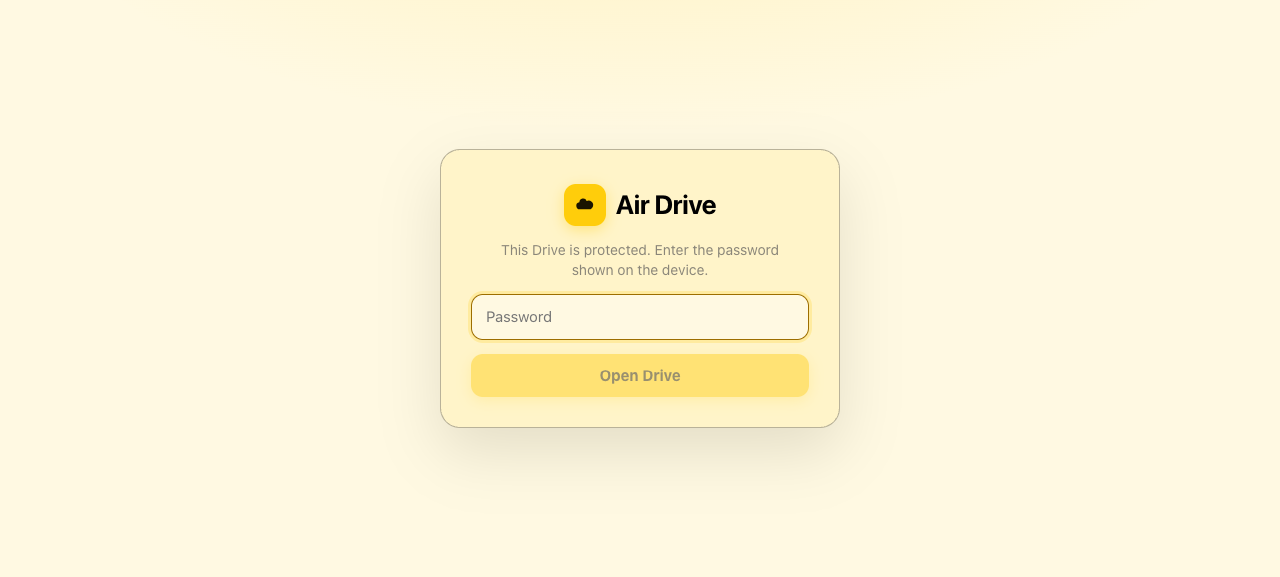
- Authenticate. Depending on the access mode (see below) you'll enter a PIN or password, or wait for the owner to approve the connection on the phone.
- Move files. Upload files or whole folders with drag and drop, download anything — or a whole folder as a ZIP — and preview before you send.
First transfer, 60 seconds
Start the server → scan the QR from a Mac → type the PIN → drag a folder onto the browser window → watch it land in the app's Files tab. That's the whole loop.
Requirements
- iPhone or iPad on iOS/iPadOS 26 or newer.
- A computer or device on the same Wi-Fi network (or a USB connection to a Mac, which exposes the Drive in Finder).
- Local network permission for Air Drive the first time you start the server — iOS asks once.
Where your files live
The Drive root is the app's Documents folder, visible in the Files app and in Finder over USB. Everything you upload via the browser, the Share extension or the Vault's export lands there. Partial uploads and thumbnails live in app-private storage and don't clutter the Drive.
Access control
The server is off by default. When it runs, three access modes decide who gets in. Choose one in Settings → Access; the Server screen always shows the current mode.
| Mode | How it works | Best for |
|---|---|---|
| Approval (default) | A new computer asks on first connect; you get an approval card on the phone and tap Allow or Deny. Approved computers are remembered. | Home use, maximum control |
| PIN | Type a short PIN on the connect screen; it's exchanged for a session. Change it any time in Settings. | Quick connections from your own devices |
| Password | A traditional password prompt in the browser. There is no recovery — there is no account. Reset it in Settings → Access. | Shared or semi-public machines |
Read-only and per-client permissions
Settings → Access includes a Read-only switch (clients can browse and download but never upload, rename or delete) and fine-grained toggles for uploads, downloads, delete and rename per session. The Server screen reflects what the current client can do.
The web client
The browser client is built into the app — served locally, under 200 KB, with zero third-party requests. Everything below works in Safari, Chrome, Edge and Firefox on macOS, Windows and Linux.
Browsing
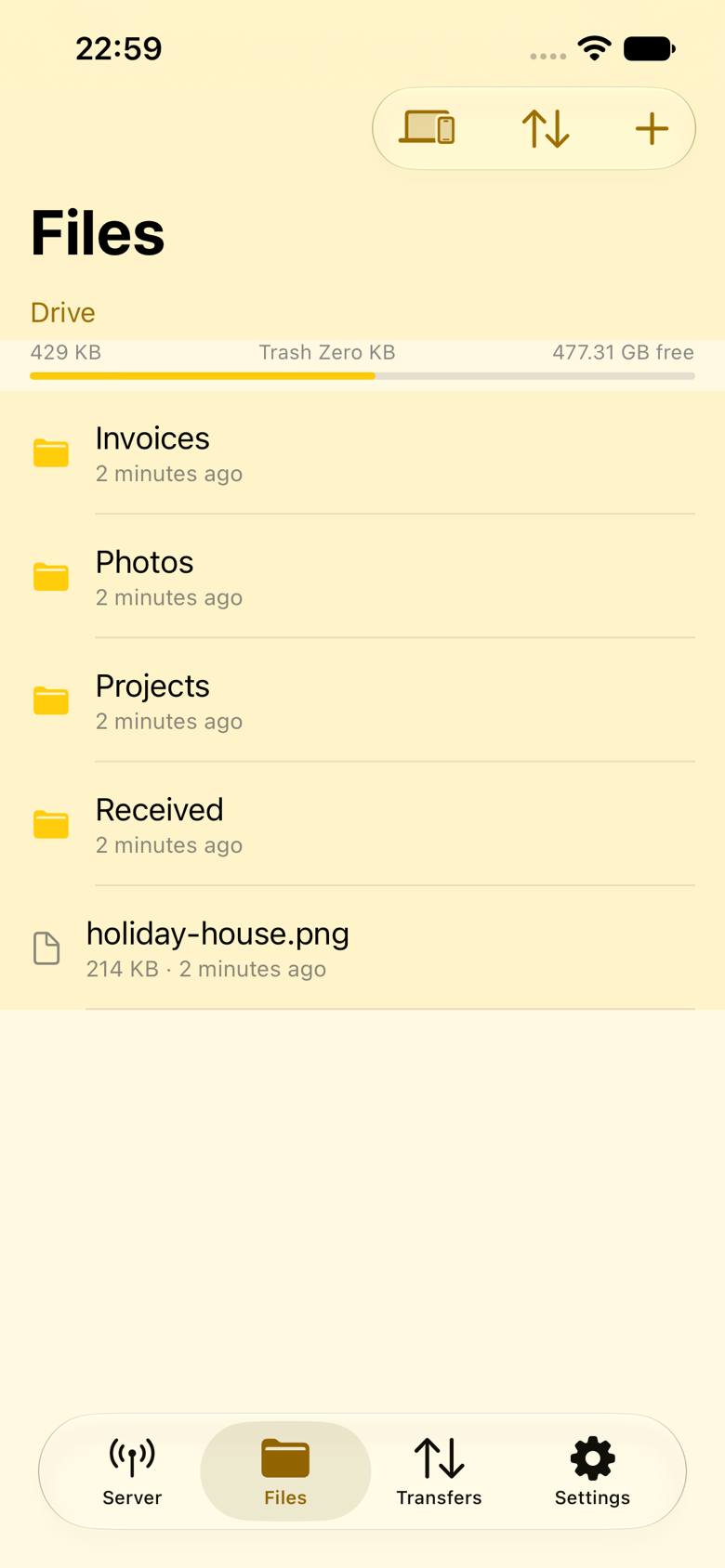
- Breadcrumbs, column sorting (name, size, date) and instant search.
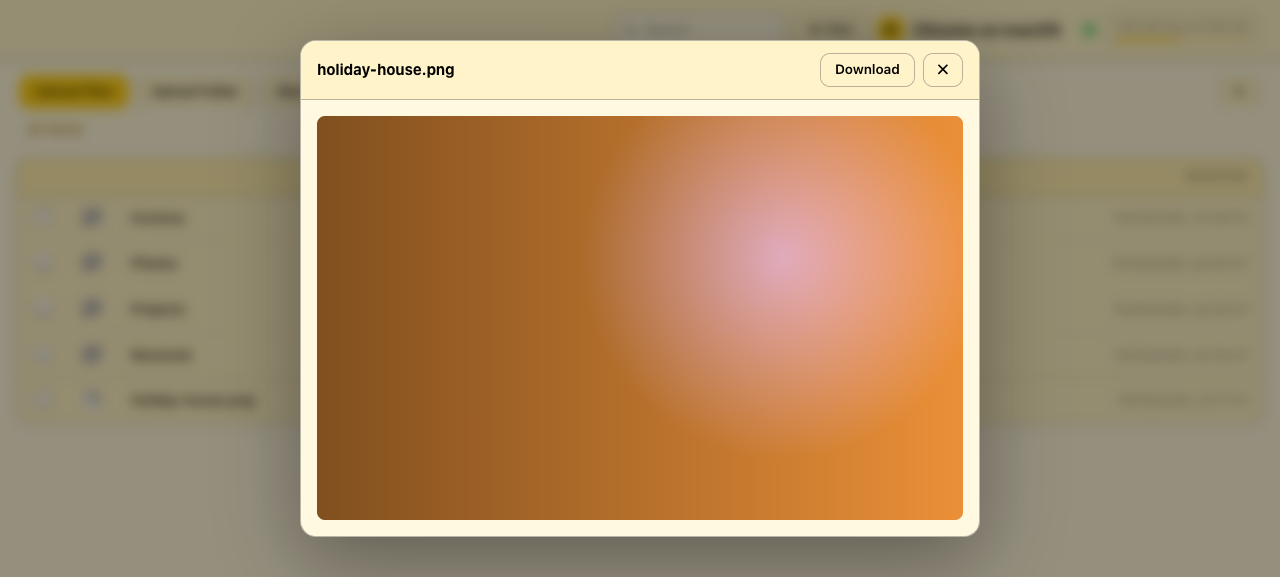
- Click a file to open the preview pane — photos, video, audio, PDFs, text — before you download.
- Multi-select with click/⌘-click or Shift-click for batch downloads.
- A storage meter shows how full the device is.
Uploading
- Drag files or whole folders onto the browser window, or use the upload button.
- Uploads are chunked (64 MB max chunk) and resumable: if a transfer drops, retry in the transfers drawer and it continues from where it stopped — even multi-gigabyte files.
- Choose the destination folder before uploading;
Received/is the default drop zone.
Downloading
- Download single files directly.
- Download a folder as a ZIP64 archive — streamed, so huge trees don't fill the phone's memory.
Transfer history & activity log
Every transfer is recorded. The Transfers drawer in the web client shows progress and retry controls; the app's Transfers tab lists history. The full activity log (who connected, what they did, from which IP) can be exported as CSV PRO.
HTTPS for hostile networks
HTTPS + fingerprint
Settings → Server → HTTPS serves the client over TLS with a self-signed certificate generated on the device. The Settings screen shows the certificate fingerprint — read it out (or compare visually) with the person on the other end to rule out interception. Ideal for hotel and office Wi-Fi.
Mount as a drive PRO
WebDAV mounting makes Air Drive behave like a USB stick over Wi-Fi: drag and drop in the native file manager, no browser at all.
Set it up
Set a WebDAV password in Settings (Pro gate), then connect from the computer:
macOS Finder:   Go → Connect to Server → dav://192.168.1.20:8080/
Windows:        Map network drive → \\192.168.1.20@8080\DavWWWRoot
                (or https://… when HTTPS is on)
GNOME Files:    Other Locations → dav://192.168.1.20:8080/
Connect with your Air Drive username and the WebDAV password. The mounted volume supports browse, upload, download, rename, delete and folder creation like any network share.
The Vault PRO
The Vault is an encrypted safe inside the app for files that must not be readable if someone else holds your phone — or if the phone itself leaves your hands.
How it works
- Files are sealed with AES-256-GCM, one random key per file, the master key wrapped and held in the Keychain with Face ID / device-passcode protection.
- The key is ThisDeviceOnly: an iCloud or backup restore onto a new device cannot open the Vault. That's the point — a thief with your backup has nothing.
- File names are encrypted too, not just contents.
- Every segment is authenticated and position-bound, so tampering, truncation or reordering is detected and refused.
- The full container format (
ADV1) is published in the security guide.
Using it
- Move files in. Select files in the Files tab and choose Vault, or use the Share extension → Air Drive → Vault.
- Open with Face ID. The Vault screen requires Face ID / device passcode each time it's opened.
- Unseal when needed. Sealed files appear as ciphertext blobs; open them through the Vault screen only.
- Migrate by exporting. To move to a new phone, use Export everything — the Vault decrypts into the Drive, you re-add on the new device, and delete the export.
Guest links & drop boxes PRO
Guest links share one folder without giving access to anything else, without an account for the guest, and with limits you set.
Creating one
- In the Files tab, select a folder → Share as guest link.
- Choose the mode: read-only (browse + download) or drop box (upload only — the guest sees nothing inside).
- Optionally set expiry (hours to days) and a download limit.
- Share the generated
/g/…URL. Guests open it in any browser — no PIN, no approval, no Air Drive on their side.
Managing
The Guest Links screen lists every active link with its mode, remaining downloads and time left. Revoke instantly, or let it expire on its own. Guest activity appears in the activity log like any other client.
Photos bridge PRO
Share albums from the Photos app over Air Drive's web client without copying a single photo into the Drive.
- A virtual Photos tree appears in the web client alongside your Drive folders.
- Pick the albums to expose; guests and clients browse them like normal folders.
- Read-only by nature — the bridge can serve photos but never receives or deletes them.
- HEIC converts to JPEG on the fly so every computer can open them; Live Photo pairs (photo + video) stay together.
- Nothing is duplicated: the bridge streams from the photo library at request time.
Typical use
Grant a family member read-only access to a "Holiday 2026" album — they browse and download from their laptop while you're both on the same network, and the photos never leave your phone.
Nearby PRO
Nearby is Client Mode: one Air Drive acting as a client of another, phone-to-phone over the local network — no computer involved.
- The Nearby screen lists other Air Drives discovered on the network via Bonjour.
- Tap one to connect (the owner of the other device approves, or you enter its PIN/password).
- Browse, download from and upload directly to the other device — a chunked tus upload runs phone-to-phone.
- Great for getting a video from one phone to another at full Wi-Fi speed, with no cloud hop.
Transfers & the activity log
Air Drive records what happens so you can audit it.
| Surface | What it shows | Where |
|---|---|---|
| Transfers drawer | Live upload/download progress, retry and pause | Web client, bottom drawer |
| Transfers tab | Transfer history (uploads + downloads, sizes, when) | In the app |
| Activity log | Connections, actions and client IPs for every session | In the app; CSV export is Pro |
CSV export (Pro)
Export the activity log as CSV from the Transfers tab — useful for spotting unexpected
clients, or for organisations keeping audit records. With AuditLogEnabled set
by MDM, the log is always on and the Owner cannot clear it.
Trash
Deletes from the web client or app aren't instant destruction — they land in a Trash you control.
- Deleted items are kept for 30 days (with a manifest), then purged automatically.
- Restore anything back to its original place, or purge early to reclaim space immediately.
- Trash storage is app-private — it doesn't appear in the Drive root.
iOS integrations
Air Drive behaves like a system citizen: you can start the server and push files without ever opening the app.
| Integration | What you can do |
|---|---|
| Widget | See server state and start/stop it from the Home Screen. |
| Control Center | A control toggles the server from any app — swipe down and tap. |
| Siri & Shortcuts | "Turn on Air Drive" via App Intents; build automations (e.g. start the server when arriving home). |
| Share extension | Share any file from any app straight into the Drive — handed to the app over the App Group, no server needed. |
| Live Activity / Dynamic Island | See that the server is running at a glance while using another app. |
| Files app & Finder USB | The Drive root is exposed as a document provider; browse it from Files, or plug into a Mac and copy over cable. |
Settings reference
Every toggle in the app, grouped by screen. MDM-managed keys override these and show as "Managed by your organisation".
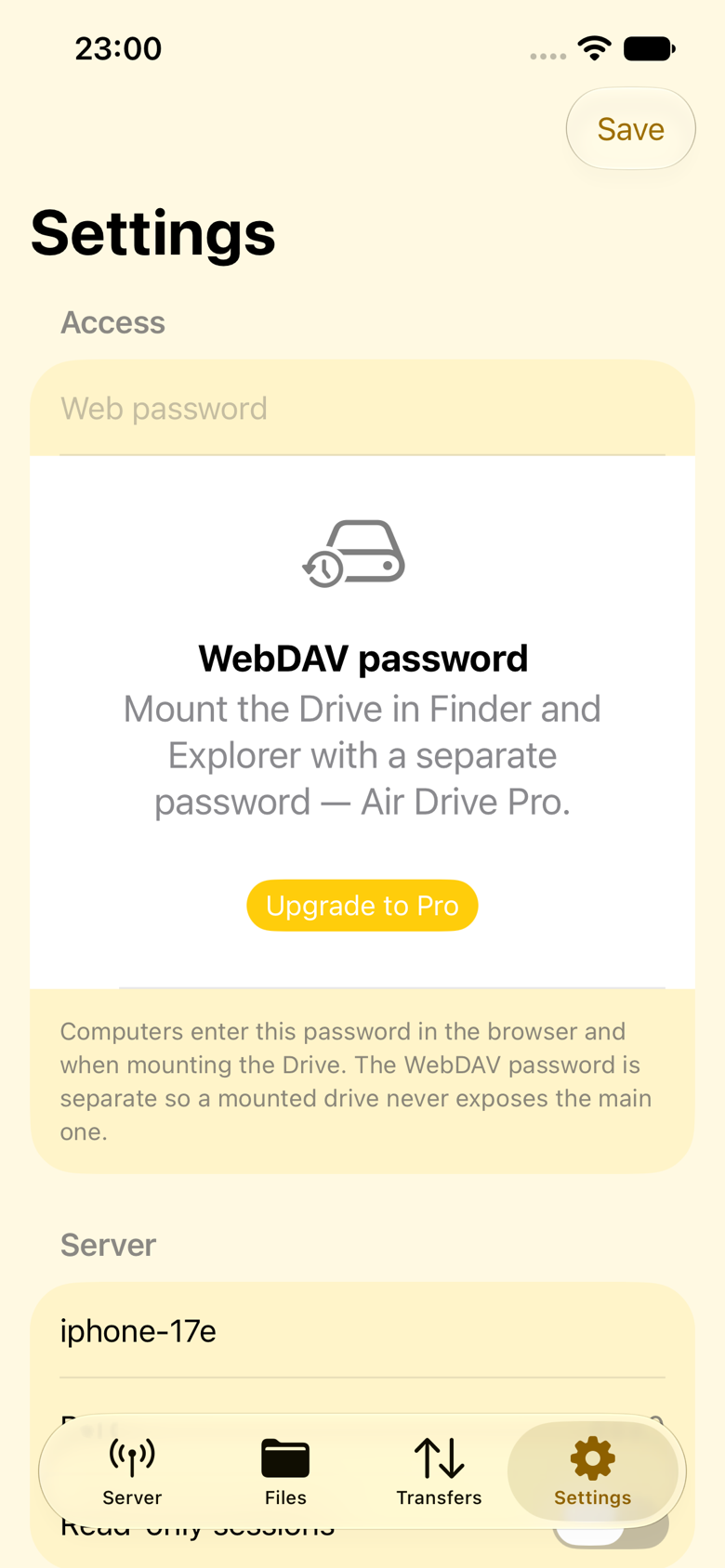
Server
| Setting | What it does |
|---|---|
| Start/Stop | Serves the Drive on the local network; the address + QR appear while running. |
| Port | Fixed port (default 8080); hidden when managed. |
| Device name | Shown to clients and used for Bonjour discovery. |
| HTTPS PRO | TLS with an on-device self-signed certificate + fingerprint display. |
| WebDAV password PRO | Enables mounting; the app re-checks Pro at start as defense in depth. |
Access
| Setting | What it does |
|---|---|
| Access mode | Approval (default), PIN or password. |
| PIN / password | Credential for the chosen mode; no account, no recovery. |
| Read-only | Clients browse and download only. |
| Per-permission toggles | Uploads, downloads, delete, rename — on/off per session. |
| Idle timeout | Session lifetime after inactivity (default 30 min; 0 = never). |
Files & storage
| Setting | What it does |
|---|---|
| Default upload folder | Where browser uploads land (Received/ by default). |
| Trash retention | Deleted items kept 30 days with a manifest; purge or restore any time. |
| Vault | Open the Vault, export everything (decrypts into the Drive). |
Ads & privacy
The free tier shows a full-screen ad on cold launch and on returning from the background, plus an interstitial when the server starts (3-minute cooldown). Ads come from Google AdMob with a consent (UMP) flow where required. Pro never starts the ads SDK — no ad requests, no tracking, no consent form. "Privacy options" appears in Settings where the consent law requires it.
MDM — Managed App Configuration
Air Drive supports Apple's standard Managed App Configuration, so MDM
systems (Jamf, Kandji, Mosyle, Microsoft Intune, Fleet, or any tool that can send an
com.apple.configuration.managed dictionary) can configure the app over the air —
no manual setup on each device. Managed keys override the Owner's settings, the UI
marks them "Managed by your organisation", and every value is validated: invalid values are
ignored and reported back in com.apple.feedback.managed.
How to deploy
Add an "App Configuration" payload for Air Drive in your MDM and provide keys as a
dictionary. The vendor schema is published in AppConfig Community specfile format —
appconfig.xml in the app's repository — which most MDM tools can import
directly. Keys apply at launch and re-apply live on change.
Full key reference
| Key | Type | Default | Effect |
|---|---|---|---|
ServerAutoStart | Boolean | false | Start the Server when the app opens. |
ServerPort | Integer | 8080 | Fixed port; hides the port setting. |
DeviceDisplayName | String | device name | Name shown to Clients and used for Bonjour. |
AccessMode | String | approval | Forces the access mode: approval, pin or password. |
AccessPassword | String | none | Sets the password when AccessMode is password. |
ReadOnly | Boolean | false | Clients can only browse and download. |
AllowUploads / AllowDownloads / AllowDelete / AllowRename | Boolean | true | Fine-grained client permissions. |
AllowedFileExtensions | Array<String> | empty (all) | Only these extensions can be uploaded. |
BlockedFileExtensions | Array<String> | empty | These extensions can never be uploaded; blocked beats allowed. |
MaxUploadSizeMB | Integer | 0 (no limit) | Per-file upload limit, enforced at upload finalization. |
IdleTimeoutMinutes | Integer | 30 | Session idle timeout; 0 means never. |
RequireHTTPS | Boolean | false | Server refuses to start without HTTPS — no silent fallback to plain HTTP. |
TLSCertificate / TLSCertificatePassword | Data / String | none | Organisation-issued PKCS#12 certificate for HTTPS. |
AllowWebDAV / AllowGuestLinks / AllowVault / AllowPhotosBridge / AllowClientMode | Boolean | true | Turn off individual Pro/feature surfaces per fleet. |
AuditLogEnabled | Boolean | false | Always record the activity log; the Owner cannot clear it. |
UnlockPro | Boolean | false | Grants Pro on this device — see the note below. |
SupportMessage | String | none | Short text shown in Help (e.g. your IT helpdesk line). |
Enforcement notes
- Live application. Changing a key that tightens access while the server runs ends affected sessions — the app applies the change and restarts the listener.
- Upload caps compose.
MaxUploadSizeMBapplies on top of the 64 MiB tus chunk cap: a chunk never exceeds 64 MiB, and the finalize step enforces the total-file limit. - Extension filtering at the door.
AllowedFileExtensions/BlockedFileExtensionsare checked when an upload is created; blocked always wins over allowed. - No HTTPS downgrade.
RequireHTTPSgates server start; with no TLS identity available the start fails with a clear message rather than falling back.
Feedback status
The app reports appVersion, serverState, lastError
and proSource under com.apple.feedback.managed whenever the
configuration changes — your MDM console can query it to verify roll-out.
About UnlockPro and App Review
The UnlockPro flag is compiled in behind the build setting
AIRDRIVE_MDM_UNLOCK_PRO, which ships off: with the default build, a
managed UnlockPro=true is ignored and reported as an issue in the feedback
dictionary. Apple's guideline 3.1.1 requires paid features to be unlocked via in-app
purchase unless the app is distributed as a custom app through Apple Business Manager. Don't
rely on UnlockPro until the distribution route is confirmed — for volume
purchases, the regular Pro IAP works and AllowVault-style keys control which
features a fleet may use.
Suggested fleet policies
| Goal | Keys to set |
|---|---|
| Locked-down kiosk device | AccessMode=password, AccessPassword=…, ReadOnly=true, RequireHTTPS=true, AuditLogEnabled=true, all Allow… flags off except WebDAV if needed |
| Field photo collection | ServerAutoStart=true, AccessMode=pin, AllowedFileExtensions=["jpg","jpeg","heic","png"], MaxUploadSizeMB=100 |
| Team file exchange | AccessMode=password, AllowGuestLinks=false, AllowVault=true, IdleTimeoutMinutes=15, AuditLogEnabled=true |
Troubleshooting
The computer can't reach the address
- Check both devices are on the same Wi-Fi (guest networks often isolate clients — disable "client isolation" or use the main network).
- Confirm the server is running — the address on the Server screen is only live while it is.
- Let Air Drive through the iOS Local Network permission (Settings → Privacy & Security → Local Network).
- Try the numeric address instead of the
.localname; some routers block mDNS.
Uploads keep failing for very large files
Uploads are sent in chunks and resume automatically. If a transfer stops, keep the browser
tab open and press retry in the transfers drawer. Chunks larger than 64 MB are rejected
by design; with MaxUploadSizeMB set, files over the cap are refused at finalization.
I forgot my server password
Settings → Access → set a new one. There is no recovery because there is no account.
The Vault won't open on my new phone
The Vault key never leaves the device it was created on — that's what makes it safe. A backup restore cannot open it. On the old device use Export everything to decrypt into the Drive, move the files, then re-add them to the Vault on the new device.
Mounted WebDAV is slow or drops
WebDAV over Wi-Fi tops out around your network's throughput (on-device testing has measured 10–16 MB/s). Turn on HTTPS only if you need it; compare with a browser upload on the same network to rule out the network itself. Reconnect from the file manager if the volume unmounts after an idle timeout.
A managed setting shows "Managed by your organisation"
Your MDM has set that key and it overrides local settings. Contact your administrator — the app cannot override a managed value.